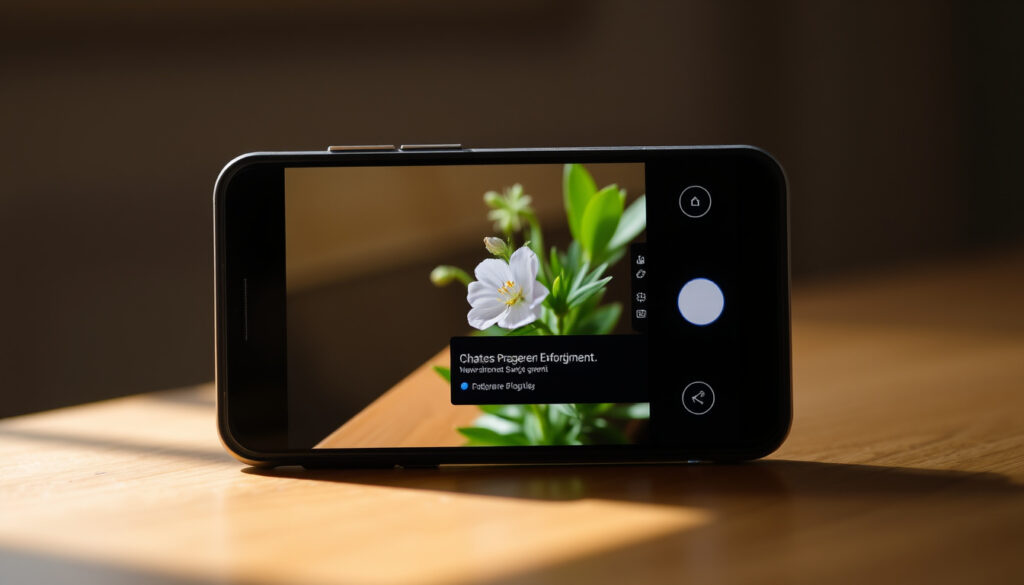
How to Use Google Lens: A Step-by-Step Guide for 2025
You’ve probably seen someone point their phone at a plant and get an instant identification. That quick party trick is Google Lens, a visual search tool that launched in October 2017 and now lives in your camera app, photo gallery, and even your desktop browser. Whether you need to translate a menu, copy text from a receipt, or shop for something you just spotted, this guide shows you exactly how to use Google Lens on every device you own.
Launch year: 2017 · Platforms supported: Android, iOS, Chrome desktop · Languages supported: 100+ · Integrated apps: Google Photos, Google Camera, Chrome, Google app
Quick snapshot
- Google Lens is free and built into the Google app, Google Photos, and Chrome (Google Lens Help (official documentation))
- Available on both Android and iOS (YouTube tutorial (iPhone demo))
- Can identify objects, text, landmarks, plants, animals, and products (Google Lens Help (official documentation))
- Exact monthly active user numbers are not publicly reported
- Performance accuracy rates for specific object categories (e.g., rare plants) are not disclosed
- Launched October 2017; integrated into Chrome desktop in 2021–2022 (Google Chrome Help (official documentation))
- Likely deeper AI integration with Google’s Gemini models for richer visual understanding
The table below lays out the core specifications every user should know before getting started.
| Fact | Value |
|---|---|
| Launch date | October 2017 |
| Parent app(s) | Google app, Google Photos, Chrome |
| Platforms | Android, iOS, Chrome desktop |
| Image recognition capability | Objects, text, landmarks, plants, animals, products |
| Price | Free |
| Offline support | Limited to text translation and some QR scanning |
| Permission required | Camera and photo library access |
The catch: seven rows of specs show a powerful tool with a clear offline limitation.
How do I access Google Lens on my phone?
Four ways exist to open Lens on a phone — none requires a separate app to download. The exact method depends on whether you’re on Android or iOS.
Accessing Lens on Android phones
- Long-press the home button or navigation bar to open the Google Assistant and tap the Lens icon (Google Lens Help (official documentation))
- Open the Google app and tap the Lens icon (a small camera) inside the search bar
- Use the Google widget on your home screen if available
Accessing Lens on iPhone
- Download the Google app from the App Store (no standalone Google Lens app exists) (YouTube tutorial (iPhone demo))
- Open the Google app and tap the Lens icon in or near the search bar
- Lens is also available inside Google Photos on iOS
Using Lens without a separate app
- Lens is built into Google Photos — open any photo and tap the Lens button (Google Photos Help (official documentation))
- On many Android camera apps, the Lens icon appears in the viewfinder
- Chrome on Android also offers Lens via the three-dot menu or long-press on an image
The implication: platform determines your entry friction, not your feature set.
How do I search a picture with Google Lens?
You can search any saved picture, whether it’s in your gallery, on a website, or right in front of you.
Searching from Google Photos
- Open Google Photos, select a photo, and tap the Lens icon (looks like a camera) at the bottom (Google Photos Help (official documentation))
- Lens scans the image and shows visual matches, text actions, or related information
- You can copy text, translate it, or search for similar products
Searching from Chrome on desktop
- Right-click any image on a webpage and select “Search image with Google Lens” (Google Chrome Help (official documentation))
- Alternatively, use the Lens icon in the address bar (if available) or the three-dot menu
- Drag to select a specific region of the page if you don’t want the full image
Searching from the camera viewfinder
- Point your camera at an object in real time and tap the Lens shutter button within the camera app
- Lens overlays results – search links, shopping options, translation – on the live view (Google Lens Help (official documentation))
- Works with printed text, barcodes, QR codes, and physical objects
The pattern: one platform excels at still images, another at live capture.
Google Lens eliminates the need to type when you’re looking at something. A single tap on a restaurant menu photo can translate the entire page – a task that would take minutes if typed manually.
How to use Google Lens on an iPhone?
iPhone users don’t get a dedicated Lens app, but the functionality is fully available through Google’s ecosystem.
Installing the Google app
- Go to the App Store and install the official Google app (free) (YouTube tutorial (Chrome))
- No separate “Google Lens” download exists for iOS – the feature is integrated
- Ensure the app has camera and photo permissions under Settings > Privacy
Using Lens in the Google app
- Open the Google app and tap the Lens icon (colorful camera) inside the search bar
- Point at an object or text, or upload an image from your library
- Results appear instantly – search links, translation, shopping options
Using Lens from the camera roll
- Open Google Photos on iPhone, select a picture, and tap the Lens button
- Identical experience to Android – copy text, identify objects, translate
The catch: Apple’s walled garden adds one extra download step before you can search.
Can I take a picture of something and ask Google to identify it?
Yes – live identification is Google Lens’s signature feature.
Identifying plants and animals
- Point your camera at a flower, leaf, or animal and tap the shutter
- Google Lens matches the visual to its database and shows the species name (Google Lens Help (official documentation))
- Works for 1000+ species, but accuracy drops for less common varieties
Identifying products and landmarks
- Scan a product barcode or take a photo of the item
- Lens provides shopping links, price comparisons, and reviews
- Point at a famous landmark to get historical facts and Wikipedia links
Translating text in real time
- Frame printed text in the viewfinder – Lens overlays the translation on screen
- Supports over 100 languages (Google Lens Help (official documentation))
- Also works with handwritten text, though accuracy is lower
The implication: Google Lens trades perfect accuracy for speed in everyday scenarios.
Google Lens sends your images to Google servers to perform recognition. If you’re concerned about privacy, avoid capturing sensitive documents with the live view and instead use offline mode for text translation only.
What is the disadvantage of Google Lens?
While powerful, Google Lens has limitations that every user should know before relying on it for critical tasks.
Requires internet for most features
- Offline mode is limited to text translation and some QR code scanning (YouTube tutorial (Lens features))
- Object identification, product search, and landmark recognition all need a data connection
- In areas with poor connectivity, Lens becomes nearly unusable for visual search
Accuracy depends on image quality
- Blurry, dark, or low-resolution images produce unreliable results
- Extreme angles or partial views of objects reduce recognition success (Google Lens Help (official documentation))
- Text recognition struggles with fancy fonts or poor lighting
Privacy concerns with camera access
- Google sends captured images to its servers for processing, raising data privacy questions
- You must grant camera and photo library permissions to use Lens fully
- Google states it doesn’t use Lens images for ad targeting, but the data still flows through its cloud (YouTube tutorial (Chrome))
The catch: three core limitations mean you should think twice before using Lens for sensitive or critical tasks.
“Right-click the image and select ‘Search with Google Lens'”
— Google Chrome Help (official documentation)
“Identify plants, animals, landmarks, and translate text in real time.”
— Google Lens product page (feature description)
The trade-off: Google Lens trades a small amount of image data for instant visual intelligence. For everyday tasks like translating a sign or identifying a plant, the upside far outweighs the downside. For handling private documents, use the offline text tool or skip Lens altogether.
Related reading: How to Clean Air Fryer: Dawn, Baking Soda & Hacks · How to Check Penalty Points Ireland: Official RSA Guide
geeksforgeeks.org, webdesigndiscovery.com, youtube.com, youtube.com
For a comprehensive overview of Google Lens capabilities across devices, check out this detailed guide on Google Lens from another resource.
Frequently asked questions
Is Google Lens free to use?
Yes, Google Lens is completely free and included with the Google app, Google Photos, and Chrome.
Does Google Lens work offline?
Offline support is limited to text translation and some QR code scanning. Most features require an internet connection.
Can Google Lens identify people?
No, Google Lens does not perform facial recognition or identify individuals. It’s designed to recognize objects, text, and landmarks.
How accurate is Google Lens?
Accuracy is high for well-lit, common objects and printed text. Rates drop for blurry images, rare species, or handwritten text. Google does not publish official accuracy statistics.
Does Google Lens work with screenshots?
Yes, you can open a screenshot in Google Photos and tap the Lens icon to analyze it. Desktop Chrome also allows searching any on-screen image via right-click.
Can I use Google Lens on a laptop without a camera?
Yes, through Chrome’s built-in Lens feature. Right-click any image on a webpage to search, or drag‑to‑select a region of the page.
More related posts
 Tax Clearance Certificate Ireland: How to Get One (2025)
 Mid Term Break February 2026: Ireland Primary & Secondary Dates
 All Her Fault Where to Watch: Streaming Guide for 2025
 EA FC Web App: Login, Release Dates, and How to Use
 20 Year Wedding Anniversary: China & Platinum Gifts
 Texas Children’s Houston Open 2026: Payout & Guide
 St Mary’s Oratory Buncrana – History, Location and Parish Guide
 Windows Live Sign In: How to Access Your Microsoft Account